PermissionsTo manage members, the
Admin role is required.Manual addition
Use the context menu in Discord to add individual members manually: Add CommunityRemoving members
There are three ways a member can be removed from the community:- Manual removal: Administrators can remove individual members at any time via the icon in the Members overview.
- Automatic removal through role loss: Once a member role has been configured, members are automatically removed if they no longer have any of the configured roles (e.g. member or event planner role).
- Automatic removal when leaving the server: If a member leaves the Discord server, they automatically lose their member status.
Banning members
If a member must be permanently excluded, admins can ban them via the icon. Banned members not only lose their member status, but are also removed from all future events of the community and cannot register again. The member is not notified about the ban itself, but receives a notification about the event removals. The ban remains active until an admin lifts it.Role synchronisation
Once you have configured role synchronisation in the community settings, your members’ permissions are automatically synchronised with Discord roles. When a member receives or loses a configured Discord role, their permissions in Slotbot are automatically updated. With a configured member role, users are automatically added as members once they receive this role.Fulfilled requirements
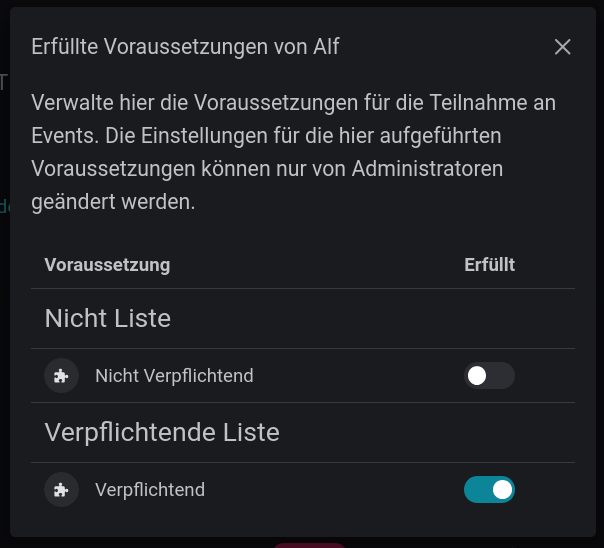
Via the icon in the Members overview, you can view and edit the fulfilled requirements of a member.