> ## Documentation Index
> Fetch the complete documentation index at: https://docs.slotbot.de/llms.txt
> Use this file to discover all available pages before exploring further.
# Event Requirements
> Requirements for participation in events.
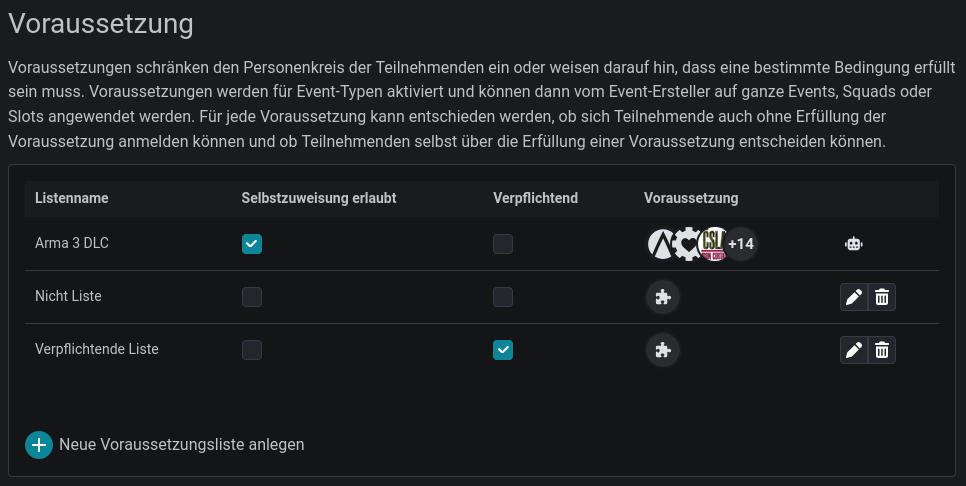 With **Event Requirements**, you define the conditions that participants must fulfil to join certain events. This could be a specific DLC, completed training, or other criteria.
You decide whether members manage their requirements themselves or whether this is handled by community administrators.
**Permissions**
To create and manage requirements, the `Admin` role is required.
## How requirements work
* Event creators [select requirements from the slotlist](/en/events/creating-events/slotlist-rules#requirements) that have been enabled for the respective event type.
* Multiple requirements are **AND-linked**: participants must fulfil **all** selected requirements to be able to register.
## Creating requirements
Open the [Community Administration](/en/communities/configuration) and scroll to the **Requirements** section.
Requirements are organised in lists so you can group related criteria together.
With **Event Requirements**, you define the conditions that participants must fulfil to join certain events. This could be a specific DLC, completed training, or other criteria.
You decide whether members manage their requirements themselves or whether this is handled by community administrators.
**Permissions**
To create and manage requirements, the `Admin` role is required.
## How requirements work
* Event creators [select requirements from the slotlist](/en/events/creating-events/slotlist-rules#requirements) that have been enabled for the respective event type.
* Multiple requirements are **AND-linked**: participants must fulfil **all** selected requirements to be able to register.
## Creating requirements
Open the [Community Administration](/en/communities/configuration) and scroll to the **Requirements** section.
Requirements are organised in lists so you can group related criteria together.
 ### List settings
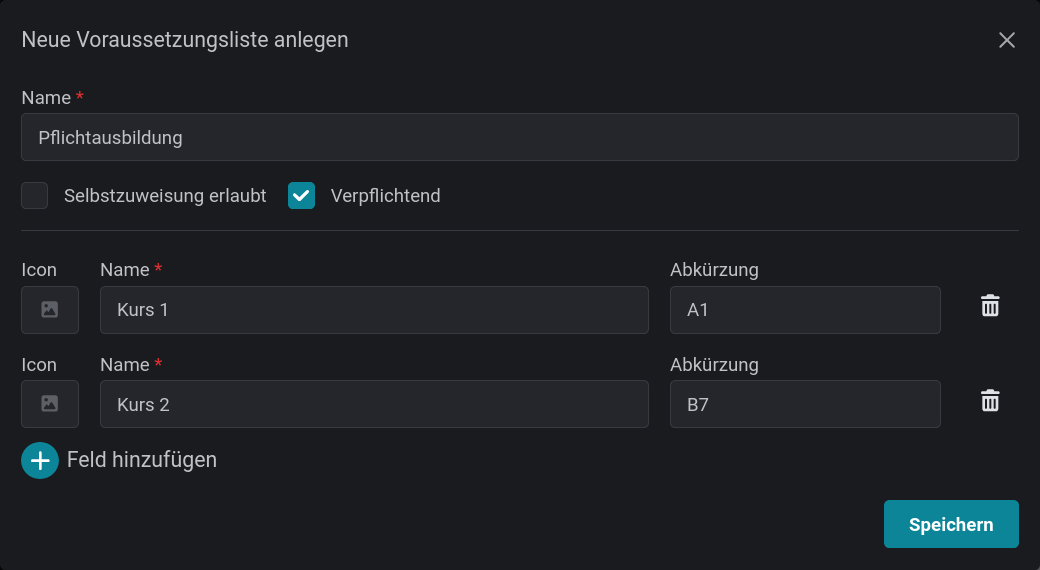
For each list, you define two properties in addition to the name:
#### 1. Who manages the fulfilment status?
* **Self-assignment allowed (participants themselves)**: Participants indicate which requirements they fulfil when registering. This is saved and remembered for next time.
* **Community Administrators**: Admins manage fulfilment in the [member management](/en/communities/members/manage-members#fulfilled-requirements).
#### 2. Mandatory or just a hint?
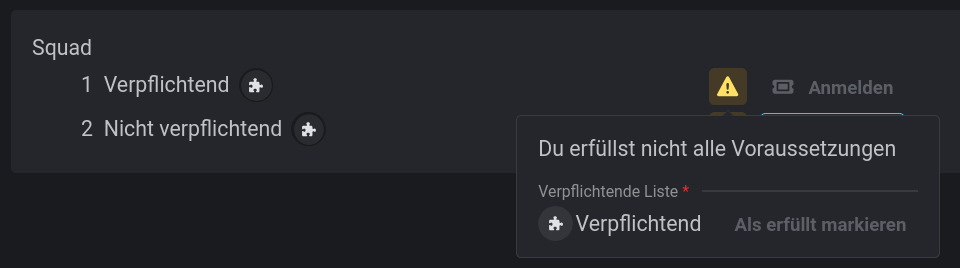
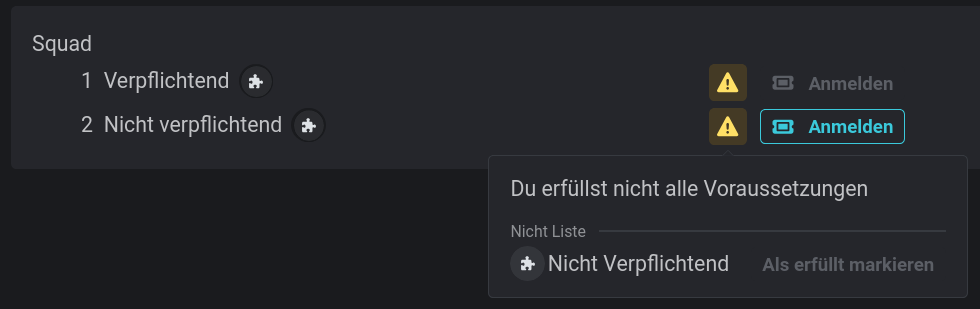
* **Mandatory (Blocker)**: If one of these requirements is missing, registration is blocked. (Not every requirement needs to be fulfilled, only those selected for the slot.)
* **Not mandatory (Hint)**: Participants only receive a hint but can still register.
### List settings
For each list, you define two properties in addition to the name:
#### 1. Who manages the fulfilment status?
* **Self-assignment allowed (participants themselves)**: Participants indicate which requirements they fulfil when registering. This is saved and remembered for next time.
* **Community Administrators**: Admins manage fulfilment in the [member management](/en/communities/members/manage-members#fulfilled-requirements).
#### 2. Mandatory or just a hint?
* **Mandatory (Blocker)**: If one of these requirements is missing, registration is blocked. (Not every requirement needs to be fulfilled, only those selected for the slot.)
* **Not mandatory (Hint)**: Participants only receive a hint but can still register.
 ### Requirements: Name, abbreviation and icon
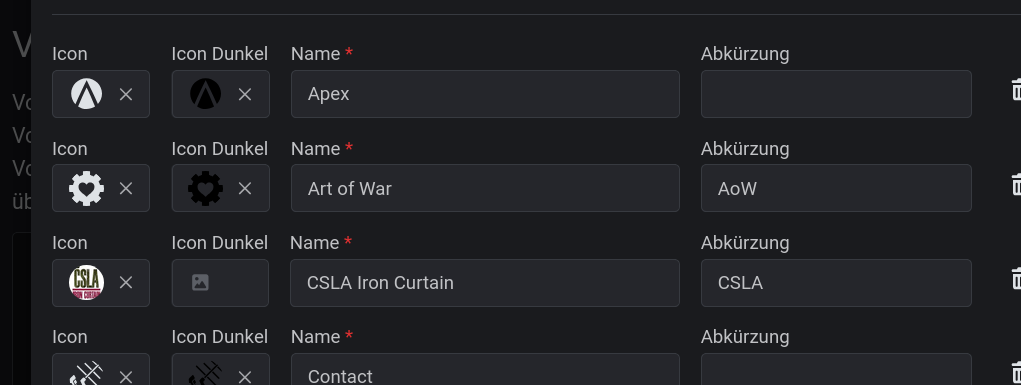
Each requirement needs at least a **name**.
Optionally, you can provide an **abbreviation**. This is used in places with limited space, for example in the Discord output of the slotlist.
**Icons** make requirements recognisable at a glance. You can optionally upload a second icon for light backgrounds.
### Requirements: Name, abbreviation and icon
Each requirement needs at least a **name**.
Optionally, you can provide an **abbreviation**. This is used in places with limited space, for example in the Discord output of the slotlist.
**Icons** make requirements recognisable at a glance. You can optionally upload a second icon for light backgrounds.
 ## Using requirements in events
To give event creators a clear selection to choose from, you enable requirement lists specifically for certain event types.
Stay in the Community Administration and switch to the **Event Types** heading. Select an event type and click the icon in the row.
## Using requirements in events
To give event creators a clear selection to choose from, you enable requirement lists specifically for certain event types.
Stay in the Community Administration and switch to the **Event Types** heading. Select an event type and click the icon in the row.
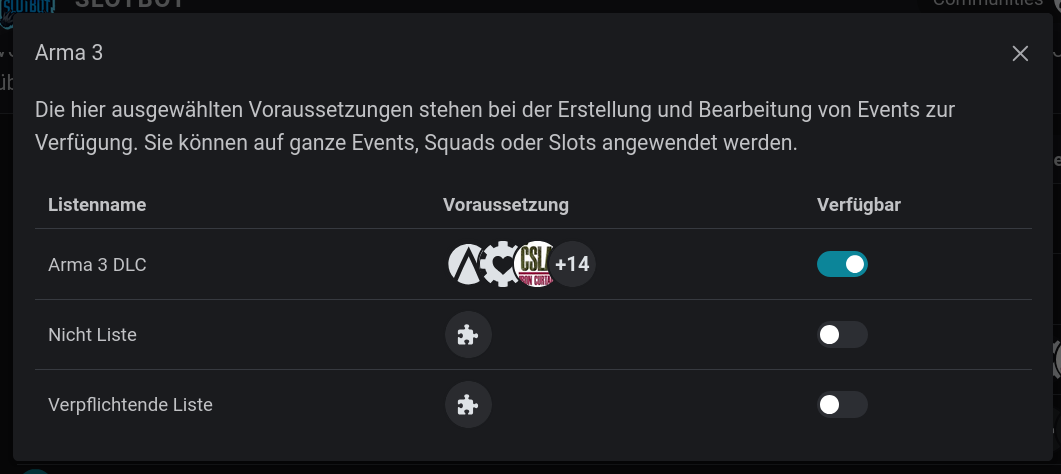 Subsequently, all requirements from the enabled lists are available for selection in events of this type. Event creators can select individual or all requirements from these.