> ## Documentation Index
> Fetch the complete documentation index at: https://docs.slotbot.de/llms.txt
> Use this file to discover all available pages before exploring further.
# Configuration
**Permissions**
To configure a community the `Admin` role is required.
## Requirements
With requirements, event creators can define conditions that members must fulfil to participate in certain events:
## Event types
Event types group similar events together. They share common properties such as colour or templates during event creation.
New event types can be added directly when creating an event.
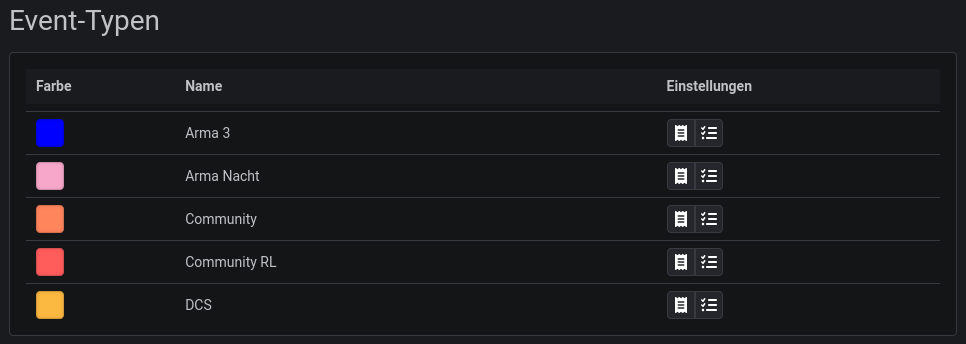 For each event type, you can configure templates and applicable requirements:
## Bans
Everything related to excluding members from the community can be found here:
## Discord Integration
### Language
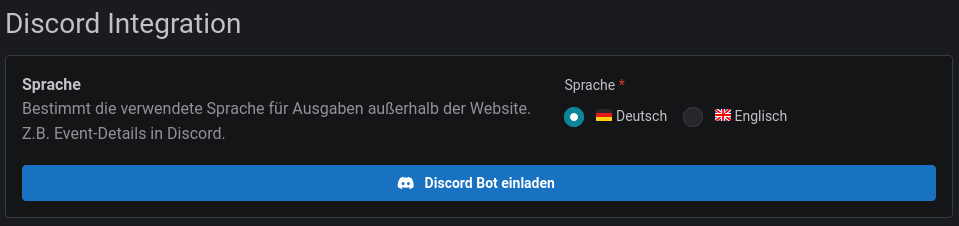
Not all integrations allow the user to choose their preferred language. For static text, such as event details in Discord, you can set a default language here.
For each event type, you can configure templates and applicable requirements:
## Bans
Everything related to excluding members from the community can be found here:
## Discord Integration
### Language
Not all integrations allow the user to choose their preferred language. For static text, such as event details in Discord, you can set a default language here.
 The following settings can only be configured once the bot has joined the server.
 ### Archive channel
Once an event has finished, you can collect it in an archive channel.
### Synchronisation of member roles
The three [authorisation roles](/en/communities/members/roles) can be linked to Discord roles. Synchronisation works bidirectionally:
* **Slotbot → Discord**: When you assign a role to a person in Slotbot, they automatically receive the linked Discord role.
* **Discord → Slotbot**: When a person receives a linked Discord role, they are automatically assigned the corresponding role in Slotbot.
For changes to member status, also see [Manage members](/en/communities/members/manage-members#role-synchronisation).
### Archive channel
Once an event has finished, you can collect it in an archive channel.
### Synchronisation of member roles
The three [authorisation roles](/en/communities/members/roles) can be linked to Discord roles. Synchronisation works bidirectionally:
* **Slotbot → Discord**: When you assign a role to a person in Slotbot, they automatically receive the linked Discord role.
* **Discord → Slotbot**: When a person receives a linked Discord role, they are automatically assigned the corresponding role in Slotbot.
For changes to member status, also see [Manage members](/en/communities/members/manage-members#role-synchronisation).
 Due to Discord's permission hierarchy, only roles below the Slotbot integration role can be selected. You can adjust the order of the roles in Discord in the Server Settings under Roles.
Tip: If you configure Discord roles, also set them up for the [slash commands](/en/integrations/discord/recommended-configuration).
Due to Discord's permission hierarchy, only roles below the Slotbot integration role can be selected. You can adjust the order of the roles in Discord in the Server Settings under Roles.
Tip: If you configure Discord roles, also set them up for the [slash commands](/en/integrations/discord/recommended-configuration).